How to Back Up Notion to the Cloud with Local-First Tool
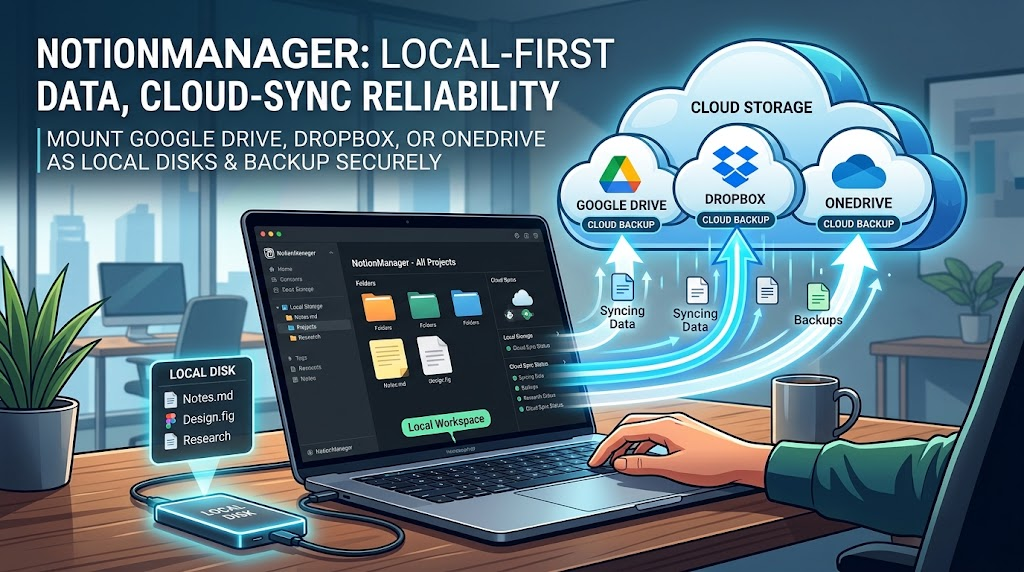
NotionManager is local-first, yet you can still back up to the cloud. Mount Google Drive, Dropbox, or OneDrive as a local disk and point the app at it.
The Problem
NotionManager has a local-first design. That means your data stays on your own disk, under your own control.
That's great. But data safety is never a one-stop operation. Your laptop can be stolen. Your hard drive can die. Your house can flood. Or you simply run out of local storage. Is there a way out?
There are plenty of cloud storage options out there. So you think: I want to back up my Notion workspace to the cloud. Google Drive, Dropbox, or even AWS S3 — somewhere I can treat as a safety net.
NotionManager can help.
How NotionManager Solves This
NotionManager is a local-first backup tool. It saves your Notion workspace to a folder on your computer. That's by design — it means you always have a full, browsable copy that doesn't depend on anyone's server.
But "local" doesn't have to mean "only on this one disk" or "only on your own disk."
NotionManager lets you choose where that backup folder lives. And that opens a simple door: if your cloud storage can appear as a folder on your computer, NotionManager can back up to it. The OS and the cloud app handle the rest.
Option 1: Cloud Storage That Looks Like a Local Disk
Some cloud services can be mounted as a local drive. They show up in your file manager just like any other folder. You can open them, drag files into them, and apps can write to them.
Examples:
- Google Drive (via Google Drive for Desktop)
- Dropbox (via Dropbox desktop app)
- OneDrive (built into Windows)
- iCloud Drive (built into macOS)
How to do it:
- Install the cloud provider's desktop app.
- Make sure your cloud folder appears in your file system.
- In NotionManager, set your backup directory to a folder inside that cloud drive.
- Run your backup.
NotionManager writes the backup files. Your cloud app syncs them up. Done.
This works well for most people. But it has a catch: if your cloud storage can't be mounted as a drive, you need another way.
Option 2: Cold Backup — Export and Move It Yourself
Some cloud storage doesn't give you a local folder. Maybe it's an object storage service (like Amazon S3, Backblaze B2, or Cloudflare R2). Maybe it's a cold archive. Maybe you just don't want a sync client running all the time.
For these cases, NotionManager has a cold backup path:
- Export a complete profile. NotionManager can package your entire backup profile — all your pages, databases, and attachments — into a single repository.
- Move that repository anywhere. Copy it to your cloud storage using whatever tool you like: a web upload, a CLI command, a scheduled script. It's just files.
- Keep it cold. You don't need it synced. You don't need it live. It's a snapshot. It sits there until you need it.
This is slower than a live sync. But it's more flexible. You can send your backup to any storage that accepts files — even a USB drive in a drawer.
Note
Export entire profile for cold backup requires a team or enterprise license.
Which One Should You Use?
| Situation | Best Option |
|---|---|
| Your cloud storage can appear as a local folder | Option 1: Mount it and point NotionManager at it |
| Your cloud storage can't be mounted | Option 2: Export and move the repository manually |
| You want continuous, automatic sync | Option 1 |
| You want a cold, long-term archive | Option 2 |
| You don't trust sync clients | Option 2 |
The Point
You don't have to choose between "local" and "cloud." NotionManager gives you a local copy first — that's your safety net. Then you decide where that copy goes next.
If your cloud drive looks like a disk, point NotionManager at it. If it doesn't, export your profile and move it yourself. Either way, your Notion data ends up somewhere safe, and you stay in control.
That's the whole idea: local first, cloud second, always under control.
Comments
No comments yet. Be the first to share your thoughts!
Leave a Reply
Your email address will not be published. Required fields are marked *