Notion Offline: What Actually Works Without an Internet Connection?
Notion now supports offline mode on desktop and mobile apps. Learn how Notion Offline works, what pages and database data are available offline, what features require an internet connection, how offline edits sync, and the key limitations of Notion’s offline experience.
Notion now supports offline work on its desktop and mobile apps. You can view, edit, and create pages without an internet connection. However Notion Offline is not the same thing as keeping your entire workspace locally available.
Notion’s offline system is built around a selected set of pages that are downloaded to your device and kept synchronized. Some pages are downloaded because you explicitly mark them for offline use; others can be downloaded automatically depending on your plan and activity. Databases have additional limitations, and some Notion features still require an internet connection.
So what exactly does “offline” mean in Notion today?
Notion Offline Mode
Notion officially introduced Offline Mode in August 2025, with the release of Notion 2.53. The release made it possible to access pages, create new pages, and continue working without an internet connection on the Notion desktop and mobile apps.
Notion described Offline Mode as a long-requested feature. Its engineering team later explained that implementing it required significant changes to how Notion stores, tracks, synchronizes, and resolves changes to page data.
In other words, offline support was not simply a matter of adding a local cache. Notion needed a persistent local storage system capable of determining exactly which content was safe to use without a network connection.
Devices That Support Notion Offline
Notion Offline is available in the desktop and mobile applications. The feature is designed around local data stored on the device.
This also means that offline availability is device-specific. A page downloaded for offline use on your phone does not automatically become available offline on your laptop. You need to prepare the pages on each device where you expect to work offline.
Not Every Notion Page Is Automatically Available Offline
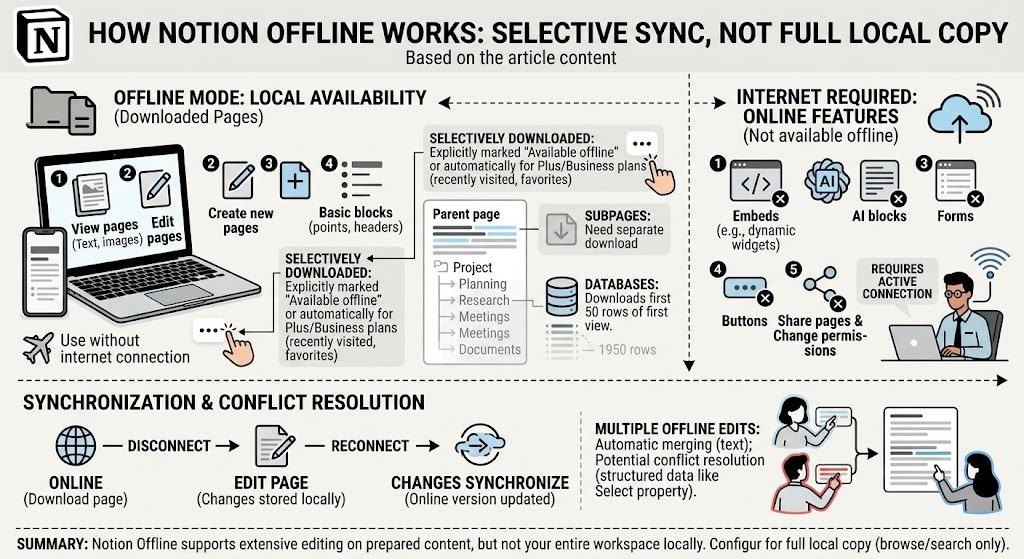
This is probably the most important thing to understand about Notion Offline. Notion does not simply download your entire workspace to your device. Instead, you can explicitly make individual pages available offline. Open a page, use the ••• menu, and enable Available offline. Notion then downloads the data required for that page to your device.
You can manage your offline pages through: Settings → Offline
This section shows which pages have been downloaded and lets you manage their offline availability.
For all plans, individual pages can be downloaded manually. On Plus, Business, and Enterprise plans, Notion can also automatically make recently visited and favorited pages available offline.
This creates an important distinction between having a Notion page in your workspace and having that page available offline on a particular device.
Subpages Need More Care
Making a parent page available offline does not mean that every subpage beneath it is automatically downloaded. Notion explicitly states that subpages of downloaded pages are not automatically downloaded for offline use.
If a page contains a hierarchy such as:
Project
├── Planning
├── Research
├── Meetings
└── Documents
making Project available offline does not guarantee that all four child pages will also be available offline. Important subpages need to be downloaded separately.
This is one of the clearest indications that Notion Offline is based on a controlled set of locally available pages rather than a complete mirror of the workspace.
Notion Offline mode on Databases
Databases have another important limitation. When you download a database, or a page containing a database, Notion automatically downloads the first 50 rows of the first view for offline use. If you need additional rows, Notion recommends downloading those rows separately.
The first view therefore matters. Notion recommends making the first view the one you use most often or the one containing the information you are most likely to need offline.
For example, suppose a database contains 2,000 project records:
Project Database
    ├── Row 1
    ├── Row 2
    ├── ...
    ├── Row 50
    ├── Row 51
    └── ...
       Row 2000
Downloading the database does not mean that all 2,000 records are necessarily available offline. When a database is made available offline, Notion automatically downloads the first 50 rows of the first view. Other important rows need additional preparation.
This makes Notion Offline particularly different from the idea of a complete local database copy.
What Can You Actually Do Offline?
Once the required content has been downloaded, Notion supports a substantial amount of normal page work without an internet connection.
You can:
- View downloaded pages.
- Edit downloaded pages.
- Create new pages.
- Use essential block types.
- Continue writing and editing existing content.
Notion's documentation describes offline editing as supporting the essential parts of normal page editing, while some advanced functionality remains dependent on an internet connection.
The exact set of supported functionality can therefore be thought of as:
                    Notion Offline
                         │
             ┌───────────┴───────────┐
             │                       │
       Locally available        Internet required
             │                       │
       View pages               Some advanced blocks
       Edit pages               Embeds
       Create pages             AI blocks
       Basic blocks             Forms
                                Buttons
So offline support is functional rather than complete. You can continue working with the content that Notion has made available locally, but you should not expect every feature of the online application to work offline.
Features That Require an Internet Connection
Notion explicitly lists several features that are unavailable offline or require a network connection:
- Embeds from other applications
- AI blocks
- Forms
- Buttons
Notion also states that you cannot share a page or change page permissions while offline. This means offline mode is primarily designed for working with existing content, rather than performing operations that depend on Notion's online services.
For example, writing a document while sitting on a plane is supported. Changing who has access to that document is not.
Notion Keeps Offline Pages Synchronized
An offline page is not simply a static snapshot created at the moment you download it.
Notion says that pages made available offline are automatically updated in the background. If you download a page on your phone and later edit that page on your desktop, the phone can receive the newer version while connected to the internet. The local copy is intended to remain synchronized with the server whenever a network connection is available.
Notion's engineering team explains that its offline architecture uses background updates rather than requiring users to manually download a page again every time something changes.
Changes Made While Offline
Changes made while offline are stored locally. When the device reconnects to the internet, those changes are synchronized with Notion's servers.
This allows a workflow such as:
Online
  ↓
Download page
  ↓
Disconnect
  ↓
Edit page
  ↓
Changes stored locally
  ↓
Reconnect
  ↓
Changes synchronize
  ↓
Online version updated
The purpose is not merely to let you read a cached document. Offline Mode is designed to let you continue modifying your Notion content and synchronize those modifications later.
Multiple Edits on the Same Page
Offline editing introduces a harder problem when multiple devices make changes before reconnecting.
Notion's engineering team explains that Offline Mode required a conflict-resolution system capable of handling concurrent changes to Notion's block-based data model.
For text content, Notion can automatically merge many concurrent edits.
Other types of structured changes are more complicated. Notion gives the example of two offline users changing the same Select property: after synchronization, only one of those changes may be retained.
Notion provides synchronization and conflict resolution, but simultaneous offline edits can still produce conflicts for certain kinds of structured data.
Note
Why Was Notion Offline Technically Difficult to Build?
Notion's own engineering explanation provides an interesting answer.
Before Offline Mode, Notion already used SQLite to cache records locally. But this cache was described as best-effort: it did not guarantee that a particular page would remain available locally or that all of the data required to render it would be present.
That model works well when an application normally has access to the server, but is not sufficient for true offline operation.
If a user opens a page while offline, Notion cannot simply discover that some required record is missing and ask the server for it. The page must already have everything it needs.
Notion therefore evolved its local SQLite cache into a persistent storage layer that tracks which pages are available offline and stores the data required to render them.
This is one reason Notion's Offline Mode is not just caching recently opened pages.
Notion Tracks Why Pages Are Available Offline
Notion's engineering team describes another interesting aspect of its implementation: a page can have more than one reason for being available offline.
For example, a page might be:
- Explicitly marked as available offline.
- Automatically downloaded because it was recently visited.
- Automatically downloaded because it was favorited.
- Included through another offline relationship.
Notion therefore cannot simply maintain a single list of downloaded pages.
Its implementation tracks the reasons pages remain part of the offline set.
This becomes particularly important when pages are moved, databases change, or offline content inherits its availability from another page.
Notion describes this structure as a collection of offline page trees.
The system can then remove one reason for keeping a page offline without necessarily removing the page itself if another reason still exists.
Offline ≠ "The Whole Workspace Is Local"
This is the key distinction. With offline application, you can continue operating without a network connection. With a local workspace copy, you have a complete representation of the workspace exists on the device independently of the online service.
Notion Offline clearly provides the first. Notion downloads selected pages and the data required to use them offline. It also has specific rules for subpages, databases, automatic downloads, and advanced blocks.
That is why you can have a perfectly functional offline experience while still not having a complete local copy of your Notion workspace.
The Practical Boundaries of Notion Offline
The current Notion Offline model can be summarized like this:
| Capability | Offline support |
|---|---|
| View downloaded pages | Yes |
| Edit downloaded pages | Yes |
| Create new pages | Yes |
| Basic blocks | Yes |
| Recently visited pages | Automatically downloaded on eligible paid plans |
| Favorited pages | Automatically downloaded on eligible paid plans |
| Entire workspace | No |
| All subpages automatically | No |
| Entire database automatically | No |
| First 50 rows of first database view | Yes |
| Additional database rows | Need separate download |
| Embeds | Requires internet |
| AI blocks | Requires internet |
| Forms | Requires internet |
| Buttons | Requires internet |
| Change permissions | Requires internet |
| Share pages | Requires internet |
| Offline edits | Saved locally and synchronized later |
| Offline availability across devices | Must be configured per device |
This can help you to judge whether offline works for your scenarios.
If the goal is:
"I want to keep writing and editing my important Notion pages when I have no internet."
Notion offline is for this.
If the goal is:
"I want my entire Notion workspace to exist locally on my computer and remain independently browsable without Notion's online service."
This is a different use case from Notion Offline, Notion does not currently provide such a solution.
Important
For such use case, NotionManager helps. It keeps a local copy of your Notion workspace on your computer for offline browsing and search, and no edit.
Notion's current Offline Mode is based on selective local availability plus synchronization. You decide which content needs to be available offline, while Notion can also automatically download certain content according to your plan and usage.
This design makes sense for an online application that wants to remain usable during temporary periods without connectivity. It does not turn Notion into a complete local-first database
What Notion Offline Actually Means
Notion Offline is much more than a simple read-only cache.
You can download pages, view and edit them without an internet connection, create new pages, and synchronize your changes when connectivity returns. Notion also maintains downloaded pages in the background and has built a dedicated local storage and synchronization architecture to support this behavior.
But offline availability is selective. Pages must be downloaded, subpages are not automatically included, databases have a 50-row limit for the automatic download of the first view, some advanced features remain online-only, and offline availability is managed separately on each device.
So the most accurate way to describe Notion Offline is:
Notion can work without an internet connection, but it does not make your entire Notion workspace available offline by default.
Comments
No comments yet. Be the first to share your thoughts!
Leave a Reply
Your email address will not be published. Required fields are marked *