NotionManager Local Rendering: Approximating Native Notion Within the Limits of the Notion API
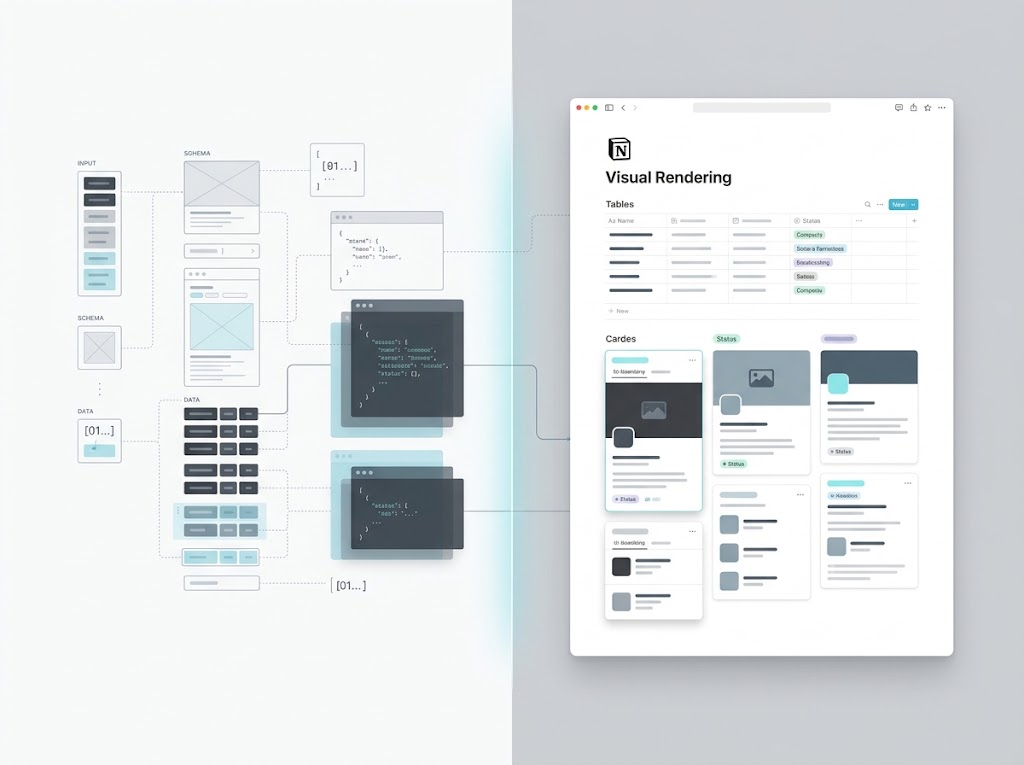
The Notion API transmits data, not browser rendering. This article explains how NotionManager faithfully rebuilds text, lists, tables, and media, and why database view layouts, synced block styling, and unsupported block types cannot fully match Notion.
One of NotionManager's goals is to render backed-up Notion content locally in a way that looks as close to native Notion as possible. But there is a hard constraint — the Notion API transmits data and structure, not what the browser renders. The API can tell you what text a block contains and what rows a database holds, but it does not tell you what those things look like in the Notion frontend.
Below, from a general reader's perspective, is an explanation of where NotionManager can achieve near-parity and where it cannot, due to API limitations.
Basic block: faithful reconstruction at the content level
For most basic block types, the Notion API provides enough information. Paragraphs, headings, lists, to-dos, quotes, code blocks, callouts, images, video embeds, bookmarks, equations, tables, column layouts, and child page links — the core information for these blocks is all in the API response: text content, formatting annotations (bold, italic, color, links), code language, table row and column structure, icons, and so on.
Once NotionManager has this data, it can map each item to a corresponding local rendering. Text formatting is deterministic, colors are deterministic, table structure is deterministic. If the API provides it, it can be reliably reproduced. Consecutive list grouping, callout icon extraction, and KaTeX rendering of equations are all faithful reconstructions when the data is sufficient.
For media such as images, videos, and files, NotionManager downloads them locally during the backup phase and uses local addresses when rendering. This solves the problem of Notion API's temporary links expiring and makes offline browsing possible. The media content itself is complete and does not go missing because of API limitations.
Database views: you get "what to see," not "how to see it"
This is the part that needs the most clarification, because it involves an easily confused distinction.
The Notion API can indeed retrieve a view's filter conditions and sort rules. According to Notion's View object documentation, a view contains filter and sorts fields, representing which filtering conditions the view applies and in what order rows are arranged. This means: which rows a view shows and the order of those rows are known to the API.
But what that view looks like in the Notion interface is not provided by the API. A view's configuration includes a large number of display-level settings: in a table view, which property columns are visible, column order and width, whether columns are frozen, whether vertical lines are shown; in a board view, which property is used for grouping, card cover size, card layout; in a calendar view, which date property is used for positioning and whether weeks or months are shown; in a timeline view, the start and end date mapping and whether the table panel is shown. This information does exist in the API — but it is a write parameter used to create or modify a view, not a complete display state automatically returned when reading an existing view.
In other words: you can set what a view looks like through the API, but in a normal backup reading flow, what you get is the data rows and the view's filter and sort rules, not the complete visual configuration that the view presents to the user in the Notion page.
What NotionManager can do is present the data rows visible after the view's filtering and sorting in table form. But if what the user sees in Notion is a carefully configured board view with column widths, a frozen first column, several hidden properties, and grouping by status, NotionManager cannot reproduce that specific visual layout. It presents the data, not that view's interface.
Synced blocks: the content is there, but there is no standard answer for the styling
A synced block in Notion is a mechanism for "content reuse": you can edit in one place and have it displayed synchronously in multiple places. At the API level, synced blocks are handled as follows: the block object itself tells you whether it is the original block or a reference block (via the synced_from field), but the block's content is not inside the block object — it requires an additional "retrieve block children" call.
NotionManager has already completed this recursive retrieval during the backup phase, so the text, images, lists, and other content inside a synced block can be fully presented. Content is not lost.
The issue is how it is presented. The Notion frontend may apply different visual treatments to original versus reference synced blocks — borders, background colors, indicator labels, and so on. The API only tells you which type it is; it does not tell you what it should look like in the browser. NotionManager can design its own styling (for example, adding an indicator label), but there is no "correct" correspondence between that styling and the official Notion frontend's styling. This is not missing data; it is missing rendering specification.
Advanced Block Types: Some Are Inferred, Some Can Only Degrade
Beyond basic blocks and synced blocks, the code handles a range of special types, each with a different degree of fidelity.
Child pages and child databases (child_page / child_database) do not carry their content inside the current page's block data; it must be fetched separately. NotionManager has already fetched this recursively during backup, so the content is complete. At render time, it uses the title map to determine whether the target is within the backup scope: if so, it renders a clickable local link; if not, it shows a missing marker and blocks navigation. The visual difference here comes mainly from backup completeness, not from the rendering logic.
Inline databases are a concrete manifestation of the database view problem. When a child database is marked inline, NotionManager renders it directly as a table. As noted earlier, filtering and sorting are available, so "which rows are visible and in what order" can be aligned; but column width, column visibility, grouping, and the specific layouts of board/calendar/timeline views are not available, so it falls back to a generic table style. Non-inline databases render as a card with an icon and title, which opens the local database page when clicked.
Column layouts (column_list / column) have a width ratio field in the API, which the code reads and maps to flex proportions, so the width distribution across columns can be reproduced; but the spacing between columns and responsive breakpoint behavior are implementation details of the Notion frontend, not provided by the API, and can only be approximated with generic CSS.
Tables have their row and column structure, column width, and column-header/row-header flags in the API, so the table itself has high fidelity; but cell vertical alignment, border styling, and the exact pixel values after column-width dragging are frontend display state that the API does not return.
Meeting notes (meeting_notes) is a composite block: its summary, notes, and transcript are each carried by child blocks, and the API only gives the child block ID references. NotionManager locates the three parts by these references and organizes them as tabs. The content is complete, but the "tab" interaction pattern is NotionManager's own design; the Notion frontend's presentation of meeting notes is not necessarily the same.
Link to page (link_to_page) carries only the target ID, not the target title. The title must be looked up from the backup's page title map; if not found, it falls back to rich text or "Untitled." So whether the displayed text of such blocks matches Notion depends on whether the target page was captured during backup.
Unsupported block types (unsupported) are a hard boundary at the API level. For unsupported blocks, the Notion API returns only a type marker, not the content structure, so NotionManager can only show a notice and try to render whatever text may be present. There is no room for "close to matching" for these blocks.
Files and PDFs are already downloaded as local files during backup, so content is not lost due to temporary link expiration; PDFs are displayed with an embedded viewer when the address is local, and fall back to a link when remote. The consistency here is "the file can be seen," not "pixel-identical to Notion's previewer."
To summarize: the common thread across these types is that the API provides content or structure, but not a complete display specification. What can be aligned is "what content exists and how it is structurally organized"; what cannot be aligned is "what visual style and interaction pattern are used to present it." This is the same class of problem as database views, just to different degrees.
Conclusion
NotionManager's rendering capability can be understood this way: whatever data the API provides, reconstruct it faithfully; whatever rendering specification the API does not provide, approximate reasonably.
For content-level things such as text, lists, tables, and media, the API data is sufficient, so fidelity is high. For database views, filtering and sorting are available, so "which data is seen" can be aligned, but "in what layout that data is presented" is not available, so it falls back to a generic table style. Synced block content is complete, but there is no standard to follow for the official rendering style. Unsupported block types are the boundary of the API itself, which no third-party renderer can get around.
This is not a problem unique to NotionManager. Every third-party rendering tool built on top of the Notion API faces the same ceiling: the API transmits data, not the interface. Getting as close as possible beneath that ceiling is already the best answer engineering can give.
Comments
No comments yet. Be the first to share your thoughts!
Leave a Reply
Your email address will not be published. Required fields are marked *