
What Happens When Notion Page History Expires?
Notion Page History expires after 7 days on Free, 30 on Plus, and 90 on Business. Once expired, versions are permanently deleted with no self-service recovery. Here’s what “expired” actually means and how to keep versions beyond Notion’s retention window.
If you’re reading this, chances are you’ve already opened a page’s version history and found that the snapshot you needed is gone. Maybe you’re on the Free plan and the edit was from last week. Maybe you’re on Plus and the version you want is from two months ago. Either way, the question is the same: what actually happens when the retention window closes?
Here’s the short answer: the history is permanently deleted, and there is no self-service way to get it back.
The retention windows, by plan
Notion’s Page History (also called version history) stores snapshots of a page on a time interval—every 10 minutes while editing, plus a final snapshot 2 minutes after you stop. How long those snapshots remain accessible depends entirely on your plan:
| Plan | Page History Retention |
|---|---|
| Free | 7 days |
| Plus | 30 days |
| Business | 90 days |
| Enterprise | Unlimited |
These numbers come directly from Notion’s documentation. They are fixed by your subscription tier. You cannot extend them, buy more, or request an exception.
What “expired” actually means
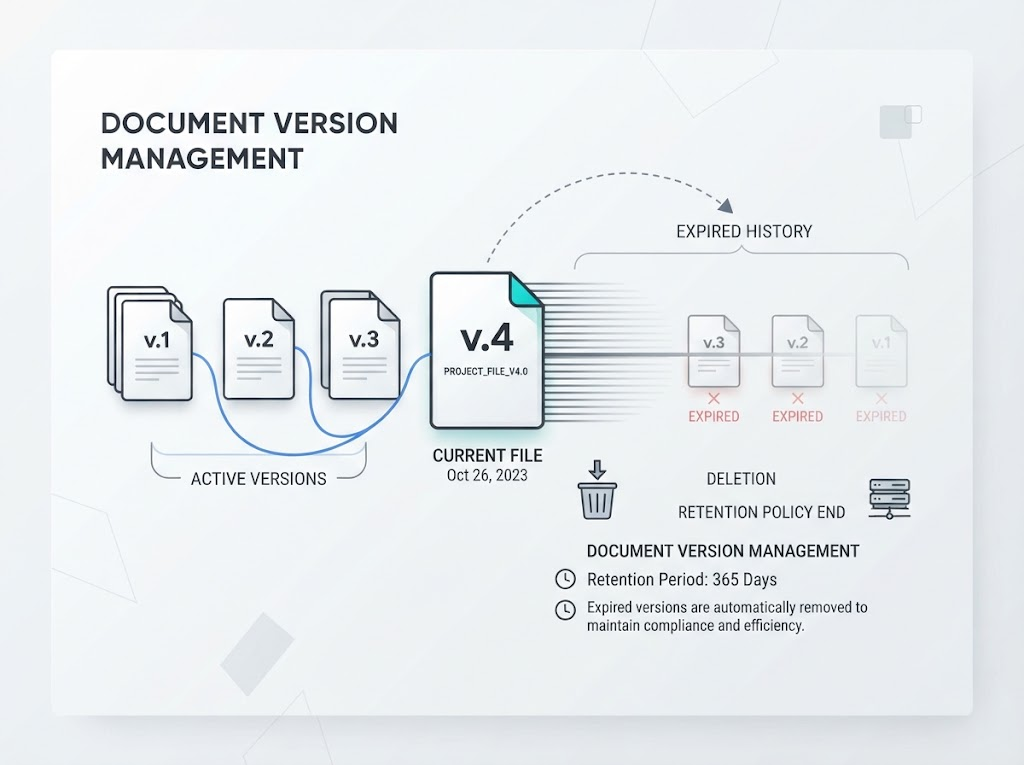
When a snapshot falls outside the retention window, it is removed from Notion’s system without alert. It does not go to Trash , it is simply removed.
This is different from deleting a page. A deleted page goes to Trash first, where it stays for 30 days on every plan before permanent deletion. Trash protects deleted pages, not expired history. Once the retention window closes, the version is inaccessible to you — and to Notion support as well.
Notion Enterprise is the exception on both counts: Page History is unlimited, and workspace owners can customize Trash retention (1 day to 10 years).
The page still exists, but the history doesn’t
This is the scenario that catches people off guard. Your page is still there. You can open it, edit it, share it. But the version from three weeks ago—the one before the big rewrite—is no longer in the history list.
If you’re on Free, you have 7 days. After 7 days, snapshots older than the window are removed from the timeline, regardless of whether you keep editing. On Plus, you get 30 days. On Business, 90. The page itself is fine. The record of what it used to look like is not.
What you can do (and what you can’t)
You cannot restore an expired version. There is no button, no hidden menu, and no support ticket that will bring it back. Notion’s help documentation is explicit: retention windows are plan-based, and expired snapshots are not recoverable.
You can try Notion support—with caveats. Notion says it keeps backups of its database and can restore a snapshot of your content from the past 30 days if you contact them. But this applies to the content as it existed recently, not to a specific historical version you lost. And there is no SLA, no guarantee, and no dedicated recovery team for expired Page History.
You can prevent it next time. The only reliable way to keep a version beyond Notion’s retention window is to store it outside Notion. That means a backup: a copy of the page’s content on storage you control, captured at a time you choose, retained for as long as you decide.
The gap between “history” and “backup”
Page History is designed for undoing recent mistakes, not for versioning documents. It’s a convenience feature with an expiration date. A versioning backup is a different layer: a copy that exists independently of Notion’s servers, independent of your subscription tier, and independent of the retention clock.
If you’ve just discovered that a version you needed has expired, you’ve hit the edge of what Notion’s native tooling can do. For the next time, the answer isn’t a longer retention window—it’s a copy that doesn’t expire.
Page History is not a versioning system. If your content matters, back it up somewhere you control.
Comments
No comments yet. Be the first to share your thoughts!
Leave a Reply
Your email address will not be published. Required fields are marked *