Sharing a Backup Outside Your Network with Cold Copy
The best way to share your Notion backup with someone outside your network is cold copy. This guide covers how to export a profile as a single repository file, import it on another machine, and the license it requires.
In Sharing a Notion Backup with Someone Else, we covered remote browsing — the simplest way to let someone view your backup when they're on the same network as your machine. But sometimes that's not an option. The recipient might be in another city, or you might need to hand over a permanent, self-contained copy rather than live access to your machine.
For these cases, NotionManager supports cold copy.
What cold copy does
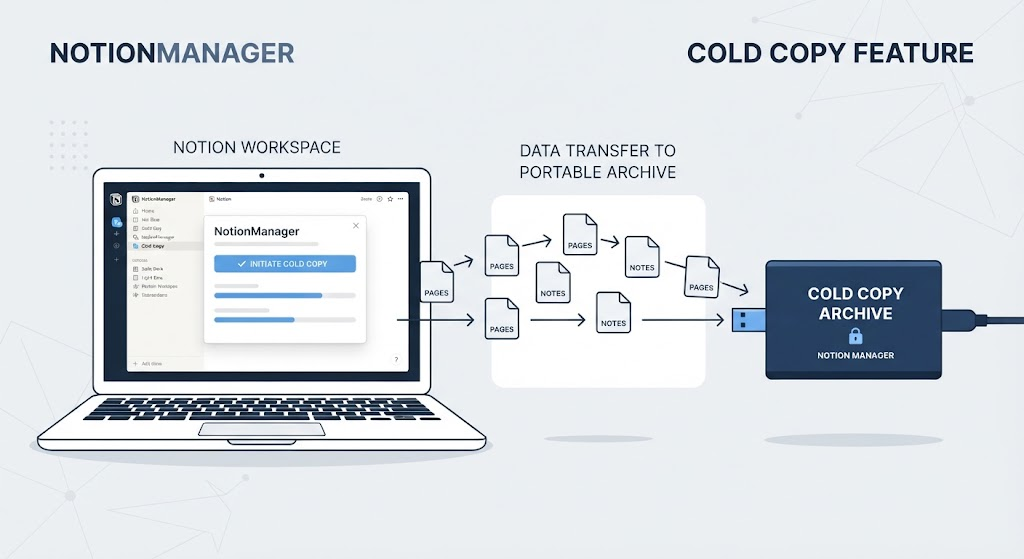
Cold copy exports an entire profile along with its backups into a single repository file. You send that file to the other person, and once they install NotionManager, they import the repository and view the backup locally — no network connection to your machine required.
In other words, cold copy turns your profile and its backups into a portable package that can be moved, stored, or handed over as a single file.
Exporting a repository
- In NotionManager, right-click any profile.
- Select "Export Repository".
- Choose where to save the repository file, and confirm.
You now have a single file containing the profile and all of its backups. Send it to the recipient through whatever channel you prefer.
Importing a repository
On the recipient's machine:
- Install NotionManager if it isn't already installed.
- Click "Create Profile".
- From the menu, select "Import Repository".
- Choose the repository file you received, and confirm.
The profile and its backups will appear in NotionManager, ready to view locally.
License requirement
Exporting and importing repositories requires a Team or Enterprise license. If you're on a different plan and need cold copy, contact us to discuss your options.
When to use cold copy
Cold copy is a good fit when:
- The recipient is not on your network, and remote browsing isn't practical.
- You need to hand over a permanent, self-contained copy of a profile and its backups.
- You want a portable archive you can move to another machine or keep as an offline snapshot.
How it compares to remote browsing
| Remote browsing | Cold copy | |
|---|---|---|
| Access | Live, from your machine | Self-contained file |
| Network | Same network by default | None required |
| Freshness | Always the current backup | A snapshot at export time |
| Control | Revocable — change credentials or disable | Out of your control once sent |
| License | Available on all plans | Team or Enterprise |
| Best for | Viewing on the same network | Handing over a permanent copy |
The tradeoff
A cold copy is a snapshot. It doesn't update when your Notion content changes, and once you've sent the file, you can't revoke it or track where it goes. If the recipient only needs to view the current backup and is on your network, remote browsing is simpler and safer. If they need a self-contained copy — or can't reach your network at all — cold copy is the way to go.
Summary
- Cold copy exports a profile and its backups as a single repository file.
- To export: right-click a profile → Export Repository.
- To import: click Create Profile → Import Repository.
- No network access to your machine is required.
- Requires a Team or Enterprise license.
- The tradeoff is that a cold copy is a snapshot and can't be revoked once sent.
If you're unsure whether remote browsing or cold copy fits your situation, tell us what you're trying to do and we'll point you to the right approach.
Comments
No comments yet. Be the first to share your thoughts!
Leave a Reply
Your email address will not be published. Required fields are marked *