Sharing a Notion Backup with Someone Else
The best way to share your Notion backup with someone else in NotionManager is remote browsing if you're on the same network. This guide covers how to set it up, who can access it, and a few practical tips.
NotionManager is built around a simple idea: your Notion data should live somewhere you control. But backup is only half the story. Sooner or later, most people need to do something with that backup beyond keeping it for themselves — show it to a colleague, hand it to an auditor, or let a client review their own content.
One question we hear is: "I need to send a backup to someone else. What's the best approach? Can I export it as a ZIM file for Kiwix, or as HTML?"
This article answers that directly.
Short answer: no export needed
NotionManager does not currently support exporting backups to ZIM, HTML, or other standalone formats. If your goal is simply to let another person view your backup, you don't need an export at all. The intended way to do this is remote browsing and this feature was just designed for such scenario.
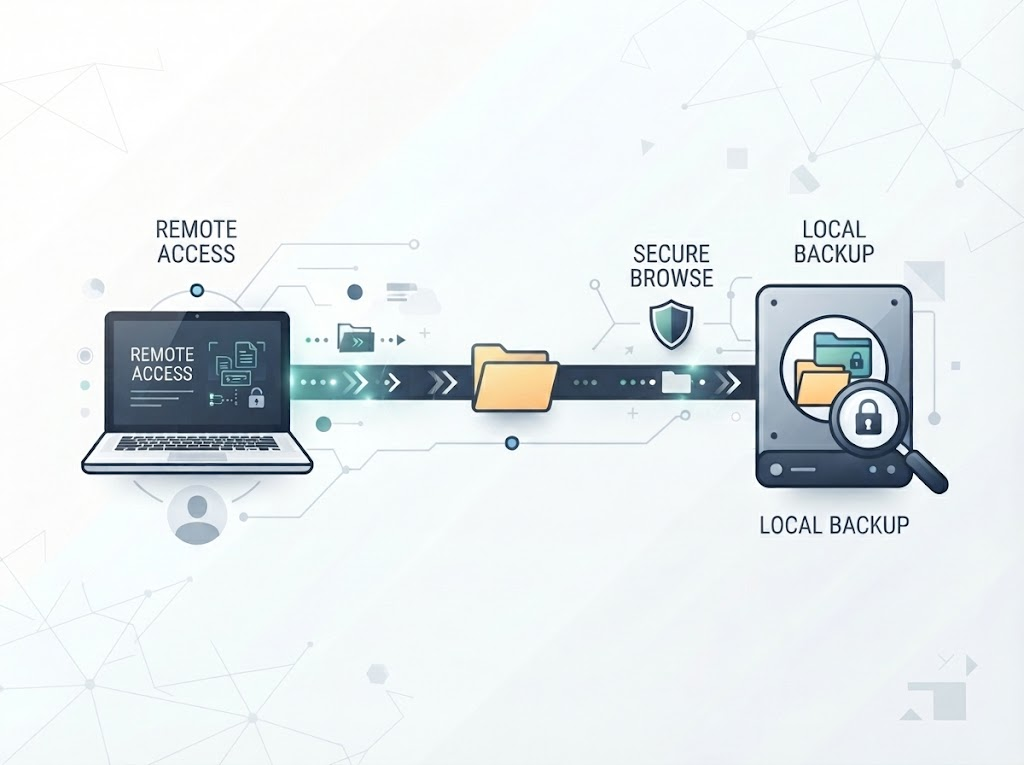
Remote browsing lets another person open your backup in their own browser, reading it exactly as you would, while the data stays on your machine. Nothing is packaged up, copied out, or handed over as a file. You share access, not a copy.
How to share a backup via remote browsing
- Create a backup in NotionManager, if you haven't already.
- Go to Settings → Remote.
- Make sure "Enable remote browse" is turned on.
- Set an access name and password — this is what the other person will use to get in.
- Click Apply. Your backup is now available to view remotely.
You can also configure the bind address and port, but the defaults are fine for most setups.
Who can access it, and how
By default, the remote server is available on your local network only. Anyone on the same network who has the access name and password can view the backup. If your machine's IP address is 192.168.1.20, for example, they would open 192.168.1.20:8733 in a browser and log in with the credentials you set.
This makes remote browsing a good fit for sharing with someone in the same office, home, or trusted network — a colleague down the hall, a family member, or a teammate on the same LAN.
What about sharing outside your network?
If the person you want to share with is not on your local network, the default setup won't reach them. In that case, you'd need to make the remote server reachable from outside — for example, through a VPN, a reverse proxy, or port forwarding on your router. This is a networking configuration rather than a NotionManager feature, and it comes with security considerations, so we recommend it only if you understand the implications. For most sharing needs, keeping it on the local network is simpler and safer.
Why not export?
Exports feel intuitive — you make a file, you send the file. But they come with tradeoffs that remote browsing avoids:
- A copy leaves your control. Once an export is sent, you can't revoke it, and you no longer know where it lives.
- Exports go stale. A file is a snapshot. If your Notion content changes and your backup updated, the exported copy doesn't.
- Format fidelity is hard. Faithfully reproducing Notion pages — structure, databases, formatting — in a standalone format is a non-trivial problem, and the result is rarely as usable as the original.
Remote browsing sidesteps all three. The viewer always sees the current backup, the data never leaves your machine, and you can revoke access by changing the credentials or disabling remote browse.
Summary
- To let someone view your backup: use remote browsing (Settings → Remote), no export required.
- Default reach: local network only, accessed via your machine's IP and port
8733, protected by the access name and password you set. - Sharing beyond your network: possible with additional networking setup (VPN, reverse proxy, port forwarding), but not required for most use cases.
If your situation doesn't fit remote browsing — for example, you need to hand over a permanent copy, or the recipient can't access your network at all — you need cold copy. Just export the profile and its backups as a single repository file, and import it on the target machine. We cover this in detail in Sharing a Backup Outside Your Network with Cold Copy.
Comments
No comments yet. Be the first to share your thoughts!
Leave a Reply
Your email address will not be published. Required fields are marked *